DateRange
- Guide
- _DateRange.cshtml
The _DateRange partial view provides a user-friendly date picker that supports selecting a range of dates. It includes support for both Umm Al-Qura and Gregorian calendar systems.
UI Preview
| State | Preview |
|---|---|
| Default | 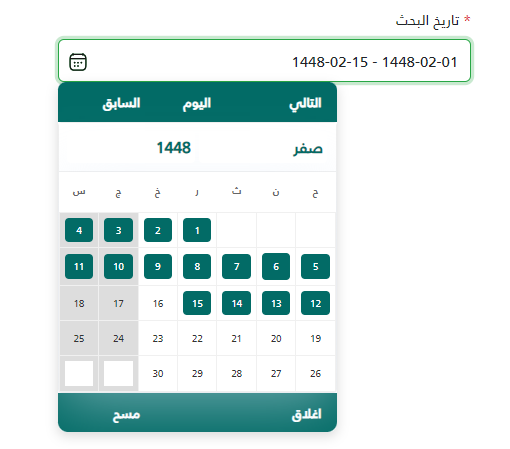 |
| Date Range |  |
| Invalid Range |  |
Usage
To use the component, you can render the UI/_DateRange partial view using either Html.PartialAsync or the <partial> tag helper. Pass the required parameters as a tuple.
Using Html.PartialAsync
@await Html.PartialAsync("UI/_DateRange",
    (
        "Label Text",        // Label
        true,                // Required
        "DateRangeId",       // ID
        "Start - End",       // Placeholder
        "gregorian",         // DateType
        "handleSelectedDate" // OnSelect (Optional)
    )
)
Using Partial Tag Helper
<partial name="UI/_DateRange"
    model='@("Label Text", false, "DateRangeId2", "Start - End", "ummalqura", "handleSelectedDate")' />
Parameters
The model for this partial view is a ValueTuple. The parameters must be passed in the specific order listed below:
| Name | Type | Required | Default | Description |
|---|---|---|---|---|
| Label | string | Yes | - | The text label to display above the input field. |
| Required | bool | Yes | - | Specifies if the field is mandatory. Adds validation styles and logic. |
| Id | string | Yes | - | The unique ID attribute for the input element. |
| Placeholder | string | Yes | - | Text to display when the input is empty. |
| DateType | string | No | "ummalqura" | The type of calendar to use. Values: "ummalqura" or "gregorian". |
| OnSelect | string | No | null | Name of a global Javascript callback function to trigger when a date is selected. |
Client-Side Features
Validation
The component includes built-in validation. If Required is set to true:
- A red asterisk (*) is appended to the label.
- The input border turns red and an error message appears if left empty upon form submission or user interaction.
- The calendar icon changes color to reflect validation state (Red for error, Green for valid).
JavaScript Helper
A global helper function is available to easily retrieve the selected values from the input.
getDateRangeValue(inputId)
Extracts the selected dates as an array.
Example:
// Function signature
// window.getDateRangeValue = function (inputId) { ... }

// Usage
var props = window.getDateRangeValue("DateRangeId");

// Output examples:
// []                  -> No date selected
// ["1446-01-01"]      -> Single date selected
// ["1446-01-01", "1446-01-10"] -> Date range selected
Callback Function
If an OnSelect function name is provided, it will be called with the selected date strings and the input ID.
Example:
function handleSelectedDate(dateStrings, inputId) {
  console.log("Selected dates:", dateStrings);
  console.log("Input ID:", inputId);
}
@using System.Runtime.CompilerServices
@model dynamic
@{
var tuple = (ITuple)Model;
var Label = tuple[0].ToString();
var Required = (bool)tuple[1];
var Id = tuple[2].ToString();
var Placeholder = tuple[3].ToString();
var DateType = tuple.Length > 4 ? tuple[4]?.ToString() : "ummalqura";
var OnSelect = tuple.Length > 5 ? tuple[5]?.ToString() : null;
if (string.IsNullOrEmpty(DateType))
{
DateType = "ummalqura";
}
}
<style>
	/* Custom Datepicker Styling */
	.calendars-popup {
		z-index: 1061 !important;
		position: absolute;
		font-family: inherit;
		border-radius: 8px;
		overflow: hidden;
		background-color: #fff;
		box-shadow: 0 4px 12px rgba(0, 0, 0, 0.15);
		width: auto !important;
	}

	/* Header (Nav) */
	.calendars-popup .calendars-nav {
		background-color: #026B66 !important;
		color: #fff !important;
		padding: 10px;
		border-bottom: none !important;
		display: flex;
		justify-content: space-between;
		align-items: center;
	}

	.calendars-popup .calendars-nav a,
	.calendars-popup .calendars-nav span {
		color: #fff !important;
		text-decoration: none;
		font-weight: bold;
		cursor: pointer;
	}

	/* Month Row Layout */
	.calendars-popup .calendars-month-row {
		display: flex !important;

	}

	.calendars-popup .calendars-month {
		display: block !important;
		float: none !important;
		flex: 1;
		border: 1px solid #eee;
		border-radius: 4px;
		margin: 0 !important;
		min-width: 250px;
	}

	/* Month Header */
	.calendars-popup .calendars-month-header {
		background-color: #fff !important;
		color: #026B66 !important;
		padding: 8px;
		font-size: 1.1em;
		border-bottom: 1px solid #eee;
	}

	.calendars-popup .calendars-month-header select,
	.calendars-popup .calendars-month-header input {
		color: #026B66 !important;
		border: none;
		background: transparent;
		font-weight: bold;
	}

	/* Calendar Table */
	.calendars-popup .calendars-month table {
		width: 100% !important;
		background-color: #fff;
		margin: 0;
		border-collapse: collapse;
	}

	.calendars-popup .calendars-month th {
		border: none !important;
		padding: 8px 0;
		color: #666;
		font-weight: normal;
	}

	.calendars-popup .calendars-month td {
		border: 1px solid #f0f0f0 !important;
		width: 14.28%;
		/* 7 columns */
		padding: 5px;
	}

	.calendars-popup .calendars-month td a {
		color: #333 !important;
		text-decoration: none;
		display: block;
		padding: 5px;
		border-radius: 4px;
	}

	.calendars-popup .calendars-month td .calendars-weekend {
		color: #d9534f;
	}

	/* Selected / Hover */
	.calendars-popup .calendars-month td a:hover {
		background-color: #f0f0f0 !important;
	}

	.calendars-popup .calendars-month td .calendars-selected,
	.calendars-popup .calendars-month td a.ui-state-active {
		background-color: #026B66 !important;
		color: #fff !important;
	}

	.calendars-popup .calendars-month td.card-selected {
		background-color: #e6f0f0 !important;
	}

	/* Footer (Ctrl) */
	.calendars-popup .calendars-ctrl {
		background-color: #026B66 !important;
		padding: 10px;
		margin: 0 !important;
		border-top: none !important;
		display: flex;
		justify-content: space-between;
	}

	.calendars-popup .calendars-ctrl a {
		color: #fff !important;
		text-decoration: none;
		font-weight: bold;
	}

	.calendars-popup .calendars-ctrl a:hover {
		text-decoration: underline;
	}

	.calendars-ctrl .calendars-cmd-today {
		display: none;
	}

	/* Validation Styles */
	.required-field.is-invalid {
		border-color: #dc3545 !important;
		box-shadow: 0 0 0 0.2rem #dc354540 !important;
	}

	.required-field.is-valid {
		border-color: #28a745 !important;
		box-shadow: 0 0 0 0.2rem #28a74540 !important;
	}

	.form-control.is-valid,
	.was-validated .form-control:valid,
	.form-control.is-invalid,
	.was-validated .form-control:invalid {
		background-image: none !important;
	}
</style>

<div class="mb-3">
	<label for="@Id" class="form-label">
		@if (Required)
		{
		<span class="text-danger">*</span>
		}
		@Label
	</label>
	<div class="position-relative">
		<input type="text" class="form-control @(Required ? " required-field" : "" )" id="@Id" name="@Id"
			placeholder="@Placeholder" readonly="readonly" @(Required ? "required data-required='true'" : "" )
			style="padding-left: 35px;">
		<span id="@Id-icon"
			style="position: absolute; left: 10px; top: 50%; transform: translateY(-50%); cursor: pointer; z-index: 2;">
			<svg width="20" height="20" viewBox="0 0 20 20" fill="none" xmlns="http://www.w3.org/2000/svg">
				<path
					d="M6.66536 9.99935C6.20513 9.99935 5.83203 10.3724 5.83203 10.8327C5.83203 11.2929 6.20513 11.666 6.66536 11.666H6.67284C7.13308 11.666 7.50618 11.2929 7.50618 10.8327C7.50618 10.3724 7.13308 9.99935 6.67284 9.99935H6.66536Z"
					fill="#161616" />
				<path
					d="M9.99496 9.99935C9.53472 9.99935 9.16163 10.3724 9.16163 10.8327C9.16163 11.2929 9.53472 11.666 9.99496 11.666H10.0024C10.4627 11.666 10.8358 11.2929 10.8358 10.8327C10.8358 10.3724 10.4627 9.99935 10.0024 9.99935H9.99496Z"
					fill="#161616" />
				<path
					d="M13.3246 9.99935C12.8643 9.99935 12.4912 10.3724 12.4912 10.8327C12.4912 11.2929 12.8643 11.666 13.3246 11.666H13.332C13.7923 11.666 14.1654 11.2929 14.1654 10.8327C14.1654 10.3724 13.7923 9.99935 13.332 9.99935H13.3246Z"
					fill="#161616" />
				<path
					d="M6.66536 13.3327C6.20513 13.3327 5.83203 13.7058 5.83203 14.166C5.83203 14.6263 6.20513 14.9993 6.66536 14.9993H6.67284C7.13308 14.9993 7.50618 14.6263 7.50618 14.166C7.50618 13.7058 7.13308 13.3327 6.67284 13.3327H6.66536Z"
					fill="#161616" />
				<path
					d="M9.99496 13.3327C9.53472 13.3327 9.16163 13.7058 9.16163 14.166C9.16163 14.6263 9.53472 14.9993 9.99496 14.9993H10.0024C10.4627 14.9993 10.8358 14.6263 10.8358 14.166C10.8358 13.7058 10.4627 13.3327 10.0024 13.3327H9.99496Z"
					fill="#161616" />
				<path fill-rule="evenodd" clip-rule="evenodd"
					d="M5.6237 1.66602C5.6237 1.32084 5.34388 1.04102 4.9987 1.04102C4.65352 1.04102 4.3737 1.32084 4.3737 1.66602V2.19501C3.70307 2.38508 3.13745 2.69401 2.66665 3.20298C2.01839 3.9038 1.73024 4.78928 1.59224 5.89894C1.45702 6.98627 1.45702 8.37974 1.45703 10.1577V10.6743C1.45702 12.4523 1.45702 13.8458 1.59224 14.9331C1.73024 16.0427 2.01839 16.9282 2.66665 17.629C3.32132 18.3368 4.15933 18.6577 5.2081 18.8102C6.22313 18.9577 7.51999 18.9577 9.1564 18.9577H10.841C12.4774 18.9577 13.7743 18.9577 14.7893 18.8102C15.8381 18.6577 16.6761 18.3368 17.3307 17.629C17.979 16.9282 18.2672 16.0427 18.4052 14.9331C18.5404 13.8458 18.5404 12.4523 18.5404 10.6743V10.1577C18.5404 8.37975 18.5404 6.98627 18.4052 5.89894C18.2672 4.78928 17.979 3.9038 17.3307 3.20298C16.8599 2.69401 16.2943 2.38508 15.6237 2.19501V1.66602C15.6237 1.32084 15.3439 1.04102 14.9987 1.04102C14.6535 1.04102 14.3737 1.32084 14.3737 1.66602V1.97093C13.427 1.87432 12.262 1.87434 10.841 1.87435H9.1564C7.73538 1.87434 6.57042 1.87432 5.6237 1.97093V1.66602ZM4.39753 3.50422C4.47208 3.766 4.71301 3.95768 4.9987 3.95768C5.34388 3.95768 5.6237 3.67786 5.6237 3.33268V3.22817C6.50787 3.12565 7.65067 3.12435 9.20703 3.12435H10.7904C12.3467 3.12435 13.4895 3.12565 14.3737 3.22817V3.33268C14.3737 3.67786 14.6535 3.95768 14.9987 3.95768C15.2844 3.95768 15.5253 3.766 15.5999 3.50422C15.9393 3.63928 16.197 3.81815 16.4131 4.05179C16.8074 4.47801 17.0408 5.06258 17.1639 6.04632C17.1371 6.04282 17.1098 6.04102 17.082 6.04102H2.91536C2.88763 6.04102 2.86032 6.04282 2.83354 6.04632C2.95663 5.06258 3.19002 4.47801 3.58428 4.05179C3.80039 3.81815 4.05811 3.63927 4.39753 3.50422ZM2.74047 7.26622C2.7075 8.06864 2.70703 9.02963 2.70703 10.2021V10.63C2.70703 12.4619 2.70817 13.7776 2.83268 14.7788C2.95554 15.7667 3.1891 16.353 3.58428 16.7802C3.97304 17.2005 4.49643 17.4436 5.3879 17.5732C6.30266 17.7061 7.50859 17.7077 9.20703 17.7077H10.7904C12.4888 17.7077 13.6947 17.7061 14.6095 17.5732C15.501 17.4436 16.0244 17.2005 16.4131 16.7802C16.8083 16.353 17.0419 15.7667 17.1647 14.7788C17.2892 13.7776 17.2904 12.4619 17.2904 10.63V10.2021C17.2904 9.02963 17.2899 8.06864 17.2569 7.26622C17.2014 7.28236 17.1427 7.29102 17.082 7.29102H2.91536C2.85466 7.29102 2.79597 7.28236 2.74047 7.26622Z"
					fill="#161616" />
			</svg>
		</span>
	</div>
	@if (Required)
	{
	<div class="text-danger small mt-1" id="@Id-error" style="display: none;">حقل @Label مطلوب</div>
	}
</div>

<script>
	(function () {
		function initDateRange() {
			var $el = $("#@Id");

			// Remove if already attached
			if ($el.data('calendarsPicker')) {
				$el.calendarsPicker('destroy');
			}

			// Check if libraries are loaded
			if (typeof $.calendars === 'undefined') {
				return;
			}

			var dateType = '@(DateType == "gregorian" ? "gregorian" : "ummalqura")';
			var cal = $.calendars.instance(dateType);

			$el.calendarsPicker({
				calendar: cal,
				rangeSelect: true,
				showTrigger: '#@Id-icon',
				dateFormat: 'yyyy-mm-dd',
				changeYear: true,
				yearRange: '-80:+20',
				minDate: '-80y',
				maxDate: '+20y',
				onSelect: function (dates) {
					var dateStrings = [];
					if (dates.length > 0) {
						dateStrings = dates.map(function (d) {
							return cal.formatDate('yyyy-mm-dd', d);
						});

						// Remove duplicate dates if same date is selected twice
						if (dateStrings.length === 2 && dateStrings[0] === dateStrings[1]) {
							dateStrings = [dateStrings[0]];
						}

						// Display format: single date or range
						if (dateStrings.length === 1) {
							$el.val(dateStrings[0]);
						} else if (dateStrings.length === 2) {
							$el.val(dateStrings.join(' - '));
						}
					} else {
						$el.val('');
					}

					// Clear validation errors when date is selected
					$el.removeClass('is-invalid').addClass('is-valid');
					$("#@Id-error").hide();

					// Update calendar icon color
					updateCalendarIconColor($el);

					// Trigger custom callback if defined
					var onSelectFn = '@OnSelect';
					if (onSelectFn && typeof window[onSelectFn] === 'function') {
						window[onSelectFn](dateStrings, '@Id');
					}

					$(this).trigger("change");
					// Trigger parsley validation if present
					if (typeof $(this).parsley === 'function') {
						$(this).parsley().reset();
					}
				}
			});

			// Bind click event to the icon to show the calendar
			$("#@Id-icon").off("click").on("click", function () {
				$el.calendarsPicker('show');
			});
		}

		$(document).ready(function () {
			setTimeout(initDateRange, 100);
		});

		$(document).on('shown.bs.modal', function (e) {
			if ($(e.target).find("#@Id").length > 0) {
				setTimeout(initDateRange, 100);
			}
		});

		window.getDateRangeValue = function (inputId) {
			var $input = $("#" + inputId);
			if ($input.length === 0) {
				console.warn("Input with ID '" + inputId + "' not found");
				return [];
			}

			var value = $input.val();
			if (!value || value.trim() === '') {
				return [];
			}

			// Check if it's a range (contains ' - ') or single date
			if (value.includes(' - ')) {
				// Split by the separator used by calendars picker ( - )
				var dates = value.split(" - ").map(function (date) {
					return date.trim();
				});
				return dates.filter(function (date) { return date !== ''; }); // Remove empty strings
			} else {
				// Single date
				return [value.trim()];
			}
		};

		// Validation function for the date range input
		function validateDateRange() {
			var $input = $("#@Id");
			var $errorDiv = $("#@Id-error");
			var isRequired = $input.data('required') === 'true' || $input.attr('required') !== undefined;

			if (isRequired && (!$input.val() || $input.val().trim() === '')) {
				$input.addClass('is-invalid').removeClass('is-valid');
				$errorDiv.show();
				updateCalendarIconColor($input);
				return false;
			} else {
				$input.removeClass('is-invalid').addClass('is-valid');
				$errorDiv.hide();
				updateCalendarIconColor($input);
				return true;
			}
		}

		// Function to update calendar icon color based on validation state
		function updateCalendarIconColor($input) {
			var $icon = $input.next('span').find('svg path');

			if ($input.hasClass('is-invalid')) {
				$icon.attr('fill', '#dc3545');
			} else if ($input.hasClass('is-valid')) {
				$icon.attr('fill', '#28a745');
			} else {
				$icon.attr('fill', '#161616');
			}
		}

		// Add validation on input change
		$("#@Id").on('change blur', function () {
			if ($(this).hasClass('is-invalid') || $(this).hasClass('is-valid')) {
				validateDateRange();
			}
		});

		// Add form submission validation
		$(document).on('submit', 'form', function (e) {
			var $form = $(this);
			var $dateInput = $form.find("#@Id");

			if ($dateInput.length > 0) {
				var isValid = validateDateRange();
				if (!isValid) {
					e.preventDefault();
					$dateInput.focus();
					return false;
				}
			}
		});

		// Expose validation function globally for manual validation
		window.validateDateRange_@Id = validateDateRange;

	})();

</script>