- Guide
- _AutoComplete.cshtml
AutoComplete Component Documentation
Enterprise-grade, accessible, flexible AutoComplete & Search Select component for ASP.NET Core MVC. Fully self-contained single-file Razor Partial View (_AutoComplete.cshtml).
UI Preview
| State | Preview |
|---|---|
| Default |  |
| Selected Value | 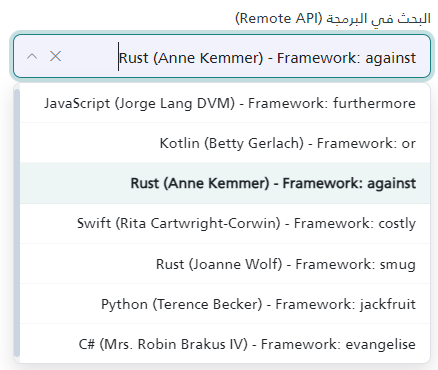 |
1. Setup Requirements
To use _AutoComplete.cshtml, ensure your project includes:
- Bootstrap 5 CSS & JS (Required for dropdown styling, responsive layout, and tooltips).
- Bootstrap Icons (
bi) (Required for action buttons: clearbi-x-lg, caretbi-chevron-down, promptbi-info-circle). - Partial Location: Store the partial view in
Views/Shared/UI/_AutoComplete.cshtml.
[!NOTE] The component automatically injects its required CSS styles and JS engine only once per HTTP request via ASP.NET Core
Context.Items. No external.jsor.cssfiles need to be referenced in your_Layout.cshtml.
2. Quick Usage Examples
Local Data Source Example
<partial name="UI/_AutoComplete" model='new {
    id          = "lawyerSelect",
    name        = "LawyerId",
    label       = "المحامي المسؤول",
    required    = true,
    placeholder = "اختر المحامي...",
    items = new[] {
        new { value = "1", label = "أحمد محمود الإبراهيم" },
        new { value = "2", label = "خالد عبدالله الفهد" },
        new { value = "3", label = "سارة محمد العتيبي" }
    }
}' />
Pre-Selected Initial Value Example
<partial name="UI/_AutoComplete" model='new {
    id            = "statusSelect",
    name          = "StatusId",
    label         = "حالة الملف",
    selectedValue = "101",
    selectedText  = "قضية قيد التداول",
    items = new[] {
        new { value = "101", label = "قضية قيد التداول" },
        new { value = "102", label = "مغلقة" }
    }
}' />
3. Remote Search — Step-by-Step Setup Guide
[!IMPORTANT] Remote mode works in 2 steps: (A) add the Razor partial in the View with
remoteUrlpointing to your controller action, (B) create an[HttpGet]action in your controller that acceptsqand returns JSON.
Step 1 — Add Partial in the Razor View
<partial name="UI/_AutoComplete" model='new {

    id                  = "caseSearch",
    // ^ Unique ID. Used to access the JS instance via AutoComplete.getInstance("caseSearch").
    // Also becomes the hidden input ID. Must be unique per page.

    name                = "CaseId",
    // ^ The form field name. ASP.NET Core binds this on POST.
    // Example: public IActionResult Save(string CaseId) { ... }

    label               = "البحث في القضايا",
    // ^ Text label displayed above the input. Leave empty to hide label.

    required            = true,
    // ^ If true: shows red asterisk *, adds aria-required, blocks form submit if empty.

    placeholder         = "اكتب رقم القضية أو اسم الطرف...",
    // ^ Placeholder text inside the empty input field.

    remoteUrl           = "/Cases/Search",
    // ^ Your controller endpoint path. The component will call:
    //   GET /Cases/Search?q={typedText}
    // Set this and the component automatically enables remote search mode.

    minimumSearchLength = 2,
    // ^ User must type at least 2 characters before a search fires.
    // Set to 0 to load default results immediately on focus.

    debounceDelay       = 400,
    // ^ Milliseconds to wait after user stops typing before sending request.
    // For remote mode, the component automatically uses 400ms if you don't set this.
    // For local mode the default is 250ms. Override explicitly to use any custom value.

    searchPrompt        = "يرجى إدخال حرفين على الأقل...",
    // ^ Message shown in dropdown when typed length < minimumSearchLength.
    // Only visible when minimumSearchLength > 0.

    allowClear          = true,
    // ^ Shows an × button inside the input when a value is selected.
    // Clicking it clears the selection AND immediately re-runs search with empty
    // query — so the dropdown re-opens with default results instead of staying empty.

    cacheResults        = true,
    // ^ Caches server responses by query string in browser memory.
    // Same query won't re-fire until cache cleared or page reloads.
    // Set to false during development to always get fresh results.

    maxVisibleItems     = 10,
    // ^ Limits how many items appear in the dropdown list at once.
    // Filtering/slicing happens client-side after receiving server response.

    showTooltip         = true
    // ^ Shows Bootstrap tooltip on item hover with the item label as content.
    // Useful when label text is long and truncated in the dropdown.

    // NOTE — Refocus behavior:
    // If an item is already selected and the user clicks back into the input,
    // the component re-opens the dropdown instantly using cached results.
    // It does NOT fire a new API request in this case.

}' />
Step 2 — Create the Controller Action
Create an [HttpGet] action in your controller. The component always sends the search text as the q query parameter:
GET /Cases/Search?q={typedText}
Basic Controller Example (Database)
// Controller: CasesController.cs

[HttpGet]
public async Task<IActionResult> Search(string q)
{
    // q = whatever the user typed. Empty string "" means no filter (show defaults).

    var results = await _db.Cases
        .Where(c =>
            string.IsNullOrEmpty(q) ||         // empty q = return all/default
            c.CaseNumber.Contains(q) ||        // match by case number
            c.Title.Contains(q)                // match by title
        )
        .Take(20)                              // always limit results for performance
        .Select(c => new {
            value   = c.Id.ToString(),         // REQUIRED: value stored in hidden input on select
            label   = c.CaseNumber + " - " + c.Title,  // REQUIRED: text shown in dropdown + input
            tooltip = c.SubjectSummary         // OPTIONAL: hover tooltip content
        })
        .ToListAsync();

    return Json(results);
    // Response MUST be a JSON array: [{ value, label }, ...]
}
Controller Example (External API Proxy)
Use this pattern when data comes from an external REST API (avoids browser CORS issues):
[HttpGet]
public async Task<IActionResult> Search(string q)
{
    const string apiUrl = "https://external-api.example.com/data";

    // local helper: safely read a JSON property as string
    string str(System.Text.Json.JsonElement el, string key)
        => el.TryGetProperty(key, out var p) ? p.ToString() : "";

    try
    {
        using var client = new System.Net.Http.HttpClient { Timeout = System.TimeSpan.FromSeconds(5) };

        var response = await client.GetAsync(apiUrl);
        if (!response.IsSuccessStatusCode) return Json(Array.Empty<object>());

        var json  = await response.Content.ReadAsStringAsync();
        var items = System.Text.Json.JsonDocument.Parse(json).RootElement.EnumerateArray();

        var result = items
            .Select(item => new
            {
                value = str(item, "id"),
                label = str(item, "name") is { Length: > 0 } n ? n : str(item, "title")
            })
            .Where(x => string.IsNullOrWhiteSpace(q)
                     || x.label.Contains(q, System.StringComparison.OrdinalIgnoreCase))
            .ToList();

        return Json(result);
    }
    catch
    {
        return Json(Array.Empty<object>()); // return empty on error — don't crash
    }
}
[!NOTE] The JSON response must be an array of objects containing at minimum
valueandlabelkeys. The component also accepts:idas alternative forvalue, andname/title/textas alternatives forlabel.
Step 3 — Verify It Works
- Run the app and open the page containing the AutoComplete.
- Open Browser DevTools → Network tab.
- Click the AutoComplete input or type something.
- Look for a
GETrequest to/Cases/Search?q=yourText. - Confirm response is a JSON array:
[{"value":"1","label":"..."}]. - Items should appear in dropdown.
[!TIP] If dropdown shows empty/no results: check the Network tab response body. If
[]is returned, your filter is too strict or theqparameter isn't matching. If the request isn't being made, checkremoteUrlpath matches your controller route exactly.
4. Configuration Properties Reference
| Property | Type | Status | Default | Description |
|---|---|---|---|---|
id | string | Optional (Recommended) | ac_ + 8 GUID chars | Unique HTML ID. Used for JS instance access. |
name | string | Optional | Same as id | Form POST field name for hidden input. |
label | string | Optional | "" | Label text above input. |
required | bool | Optional | false | Asterisk + validation on form submit. |
placeholder | string | Optional | "ابحث هنا..." | Input placeholder text. |
selectedValue | string | Optional | "" | Pre-selected item value on load. |
selectedText | string | Optional | "" | Pre-selected item display text on load. |
items / options | IEnumerable | Local Mode | [] | Static data array. |
remoteUrl | string | Remote Mode | "" | GET ?q= endpoint. Enables remote mode. |
enableRemoteSearch | bool | Optional | false | Force remote mode without remoteUrl. |
minimumSearchLength | int | Optional | 0 | Min chars before search fires. |
debounceDelay | int | Optional | 250 local / 400 remote | Ms wait after typing stops. Remote auto-bumps to 400 unless overridden. |
maxVisibleItems | int | Optional | 100 | Max dropdown items shown. |
dropdownMaxHeight | string | Optional | "280px" | CSS max-height of dropdown. |
allowClear | bool | Optional | true | Show × button. On click: clears selection and re-runs empty search so dropdown shows defaults. |
disabled | bool | Optional | false | Disable input. |
readonly | bool | Optional | false | Read-only input. |
autoFocus | bool | Optional | false | Focus input on page load. |
showTooltip | bool | Optional | false | Hover tooltip on items. |
cacheResults | bool | Optional | true | Cache AJAX responses in memory. |
searchCaseSensitive | bool | Optional | false | Case-sensitive local filter. |
searchMode | string | Optional | "contains" | contains / startsWith / exact. |
searchPrompt | string | Optional | "عليك كتابة نص..." | Prompt when query too short. |
5. Item Object Schema
Items returned by the controller (or passed in items) are normalized automatically:
| Property | Alternative Keys | Type | Status | Description |
|---|---|---|---|---|
value | Value, id, Id | string / int | Required | Stored in hidden input on select. |
label | Label, name, Name, title, Title, text, Text | string | Required | Displayed in dropdown and input. |
tooltip | title, Title | string | Optional | Hover tooltip content. |
disabled | Disabled | bool | Optional | Greys out + prevents selection. |
6. JavaScript API & Helper Functions
Built-in Helper Function to Get Selected Value
getAutoComplete(id) is a built-in global helper function available on window. It returns { value, label } of the selected item, or null if nothing is selected.
// Global built-in helper function
const selected = getAutoComplete("caseSearch");

if (selected) {
    console.log("Selected Value:", selected.value); // e.g. "101"
    console.log("Selected Label:", selected.label); // e.g. "قضية قيد التداول"
} else {
    console.log("No item selected");
}
Instance Methods for Reading Values
You can also retrieve the instance using AutoComplete.getInstance(id) and call getter methods directly:
const ac = AutoComplete.getInstance("caseSearch");

// 1. Get raw value string (hidden input value)
const val = ac.getValue();          // returns "101" or ""

// 2. Get simplified selected object { value, label }
const item = ac.getSelectedItem();  // returns { value: "101", label: "..." } or null

// 3. Get full raw item object (including custom properties)
const fullItem = ac.getItem();      // returns { value: "101", label: "...", tooltip: "..." } or null
ac.setValue("5", "Cairo"); // programmatically select ac.clear(); // clear selection (fires default search) ac.setData([...]); // replace local dataset ac.reload(); // re-run last remote query ac.clearCache(); // clear cached responses
ac.enable(); ac.disable(); ac.open(); ac.close(); ac.focus(); ac.blur(); ac.validate(); // → bool, marks invalid if required + empty ac.destroy(); // cleanup all events + instance
### Events
```javascript
// Via callbacks
initAutoComplete('ac-container-caseSearch', {
    onSelect: ({ item })        => console.log(item),
    onChange: ({ value, item }) => console.log(value),
    onClear:  ()                => console.log('cleared'),
    onError:  ({ error })       => console.warn(error)
});

// Via DOM events
document.getElementById('ac-container-caseSearch')
    .addEventListener('autocomplete:select', e => console.log(e.detail.item));
7. Form POST & Model Binding
The component renders a hidden input <input type="hidden" name="{name}" value="{selectedValue}" />.
On form submit, ASP.NET Core auto-binds by field name:
[HttpPost]
public IActionResult Save(string CaseId, string LawyerId)
{
    // CaseId / LawyerId = the selected values from AutoComplete inputs
    return RedirectToAction("Index");
}
8. Keyboard Shortcuts
| Key | Action |
|---|---|
↓ / ↑ | Open dropdown / navigate items |
Enter | Select highlighted item |
Tab | Commit highlighted item + move focus |
Escape | Close dropdown |
Home / End | Jump to first / last item |
@using System.Text.Json
@using Microsoft.AspNetCore.Routing
@model dynamic
@{
// ── Defaults ──────────────────────────────────────────────────────────
string Id = "ac_" + Guid.NewGuid().ToString("N").Substring(0, 8);
string Name = "";
string Label = "";
bool Required = false;
string Placeholder = "ابحث هنا... / Search...";
string SelectedValue = "";
string SelectedText = "";
int MinimumSearchLength = 0;
int DebounceDelay = 250;
int MaxVisibleItems = 100;
string DropdownMaxHeight = "280px";
bool AllowClear = true;
bool Disabled = false;
bool Readonly = false;
bool AutoFocus = false;
bool ShowTooltip = false;
bool EnableRemoteSearch = false;
string RemoteUrl = "";
bool CacheResults = true;
bool SearchCaseSensitive = false;
string SearchMode = "contains"; // contains | startsWith | exact | fuzzy (TODO, falls back to contains)
string SearchPrompt = "عليك كتابة نص للبحث...";
var RawItems = new List<object>();
// Tolerant parsers: a caller passing the wrong CLR type (e.g. "true" instead of true)
// must not crash the whole partial render — fall back to the current default instead.
bool ParseBool(object v, bool fallback) =>
v is bool b ? b : (v != null && bool.TryParse(v.ToString(), out var p) ? p : fallback);
int ParseInt(object v, int fallback) =>
v is int i ? i : (v != null && int.TryParse(v.ToString(), out var p) ? p : fallback);
// ── Model resolution ──────────────────────────────────────────────────
if (Model != null)
{
var dict = new RouteValueDictionary(Model);
if (dict.TryGetValue("id", out var idVal)) Id = idVal?.ToString() ?? Id;
if (dict.TryGetValue("name", out var nmVal)) Name = nmVal?.ToString() ?? "";
if (dict.TryGetValue("label", out var lblVal)) Label = lblVal?.ToString() ?? "";
if (dict.TryGetValue("required", out var rqVal)) Required = ParseBool(rqVal, Required);
if (dict.TryGetValue("placeholder", out var phVal)) Placeholder = phVal?.ToString() ?? Placeholder;
if (dict.TryGetValue("selectedValue", out var svVal)) SelectedValue = svVal?.ToString() ?? "";
if (dict.TryGetValue("selectedText", out var stVal)) SelectedText = stVal?.ToString() ?? "";
if (dict.TryGetValue("minimumSearchLength", out var minVal)) MinimumSearchLength = ParseInt(minVal, MinimumSearchLength);
if (dict.TryGetValue("debounceDelay", out var debVal)) DebounceDelay = ParseInt(debVal, DebounceDelay);
if (dict.TryGetValue("maxVisibleItems", out var maxVal)) MaxVisibleItems = ParseInt(maxVal, MaxVisibleItems);
if (dict.TryGetValue("dropdownMaxHeight", out var dmhVal)) DropdownMaxHeight = dmhVal?.ToString() ?? DropdownMaxHeight;
if (dict.TryGetValue("allowClear", out var acVal)) AllowClear = ParseBool(acVal, AllowClear);
if (dict.TryGetValue("disabled", out var dsVal)) Disabled = ParseBool(dsVal, Disabled);
if (dict.TryGetValue("readonly", out var roVal)) Readonly = ParseBool(roVal, Readonly);
if (dict.TryGetValue("autoFocus", out var afVal)) AutoFocus = ParseBool(afVal, AutoFocus);
if (dict.TryGetValue("showTooltip", out var sttVal)) ShowTooltip = ParseBool(sttVal, ShowTooltip);
if (dict.TryGetValue("enableRemoteSearch", out var ersVal)) EnableRemoteSearch = ParseBool(ersVal, EnableRemoteSearch);
if (dict.TryGetValue("remoteUrl", out var urlVal)) RemoteUrl = urlVal?.ToString() ?? "";
if (dict.TryGetValue("cacheResults", out var crVal)) CacheResults = ParseBool(crVal, CacheResults);
if (dict.TryGetValue("searchCaseSensitive", out var scsVal)) SearchCaseSensitive = ParseBool(scsVal, SearchCaseSensitive);
if (dict.TryGetValue("searchMode", out var smVal)) SearchMode = smVal?.ToString() ?? SearchMode;
if (dict.TryGetValue("searchPrompt", out var spVal)) SearchPrompt = spVal?.ToString() ?? SearchPrompt;
if (dict.TryGetValue("items", out var itemsVal) || dict.TryGetValue("options", out itemsVal))
{
if (itemsVal is System.Collections.IEnumerable enumItems)
foreach (var item in enumItems) RawItems.Add(item);
}
}
if (string.IsNullOrEmpty(Name)) Name = Id;
if (!string.IsNullOrEmpty(RemoteUrl)) EnableRemoteSearch = true;
// ── Serialise config for JS ───────────────────────────────────────────
var clientConfig = new
{
id = Id, name = Name, placeholder = Placeholder,
selectedValue = SelectedValue, selectedText = SelectedText,
minimumSearchLength = MinimumSearchLength, debounceDelay = DebounceDelay,
maxVisibleItems = MaxVisibleItems, allowClear = AllowClear,
disabled = Disabled, @readonly = Readonly, autoFocus = AutoFocus,
showTooltip = ShowTooltip,
enableRemoteSearch = EnableRemoteSearch, remoteUrl = RemoteUrl,
cacheResults = CacheResults, searchCaseSensitive = SearchCaseSensitive,
searchMode = SearchMode, searchPrompt = SearchPrompt, required = Required
};
string jsonConfig = JsonSerializer.Serialize(clientConfig);
string jsonItems = JsonSerializer.Serialize(RawItems);
}
@* ── STYLES (once per request) ─────────────────────────────────────────── *@
@if (!Context.Items.ContainsKey("AutoComplete_Styles_Rendered"))
{
Context.Items["AutoComplete_Styles_Rendered"] = true;
<style>
/* Section map: Container, Label, Input, Validation, Actions (incl. loading
spinner), Dropdown (incl. open/close animation), Items, Tooltip, States
(empty/loading/prompt/error + retry button). Rule order is intentionally
preserved as-is — some rules share specificity with later ones (e.g.
.ac-highlighted vs .ac-selected) and rely on source order to resolve
correctly when both classes land on the same item. */
/* ── Container ─────────────────────────────────────────────────── */
.ac-container {
position: relative;
width: 100%;
font-family: inherit;
}
/* ── Label ─────────────────────────────────────────────────────── */
.ac-label {
display: inline-block;
font-size: 0.9rem;
font-weight: 500;
color: #343a40;
margin-bottom: 0.375rem;
}
.ac-label .ac-required-star {
color: #dc3545;
font-weight: bold;
}
/* ── Input wrapper ─────────────────────────────────────────────── */
.ac-input-wrapper {
position: relative;
display: flex;
align-items: center;
width: 100%;
background-color: var(--bs-body-bg, #ffffff);
border: 1px solid var(--bs-border-color, #ced4da);
border-radius: 0.5rem;
transition: border-color 0.2s ease-in-out, box-shadow 0.2s ease-in-out;
}
.ac-input-wrapper:focus-within {
border-color: #1B8183;
box-shadow: 0 0 0 0.25rem rgba(27, 129, 131, 0.25);
}
.ac-container.ac-disabled .ac-input-wrapper {
background-color: var(--bs-secondary-bg, #e9ecef);
cursor: not-allowed;
opacity: 0.75;
}
/* ── Validation ─────────────────────────────────────────────────── */
.ac-container.ac-invalid .ac-input-wrapper {
border-color: #dc3545;
box-shadow: 0 0 0 0.25rem rgba(220, 53, 69, 0.2);
}
.ac-error-msg {
display: none;
font-size: 0.8125rem;
color: #dc3545;
margin-top: 0.3rem;
}
.ac-container.ac-invalid .ac-error-msg { display: block; }
/* ── Text input ────────────────────────────────────────────────── */
.ac-input {
width: 100%;
height: 42px;
padding: 0.5rem 3.75rem 0.5rem 0.875rem;
font-size: 0.9375rem;
color: var(--bs-body-color, #212529);
background: transparent;
border: none;
outline: none !important;
box-shadow: none !important;
text-overflow: ellipsis;
white-space: nowrap;
overflow: hidden;
}
[dir="rtl"] .ac-input {
padding: 0.5rem 0.875rem 0.5rem 3.75rem;
}
/* ── Action buttons (clear / caret / spinner) ──────────────────── */
.ac-actions {
position: absolute;
top: 50%;
transform: translateY(-50%);
display: flex;
align-items: center;
gap: 0.35rem;
right: 0.75rem;
pointer-events: none;
}
[dir="rtl"] .ac-actions {
right: auto;
left: 0.75rem;
}
.ac-actions button, .ac-actions span { pointer-events: auto; }
.ac-spinner {
display: inline-block;
width: 1rem;
height: 1rem;
border: 2px solid rgba(27, 129, 131, 0.25);
border-top-color: #1B8183;
border-radius: 50%;
animation: ac-spin 0.6s linear infinite;
}
@@keyframes ac-spin { to { transform: rotate(360deg); } }
.ac-clear {
display: flex;
align-items: center;
justify-content: center;
width: 1.5rem;
height: 1.5rem;
padding: 0;
background: transparent;
border: none;
color: #6c757d;
border-radius: 50%;
cursor: pointer;
transition: color 0.15s ease-in-out, background-color 0.15s ease-in-out;
}
.ac-clear:hover {
color: #dc3545;
background-color: rgba(220, 53, 69, 0.1);
}
.ac-caret {
color: #6c757d;
font-size: 0.75rem;
transition: transform 0.2s ease;
cursor: pointer;
}
.ac-container.ac-open .ac-caret { transform: rotate(180deg); }
/* ── Dropdown ──────────────────────────────────────────────────── */
.ac-dropdown {
position: absolute;
top: calc(100% + 4px);
left: 0; right: 0;
z-index: 1050;
display: none;
background-color: var(--bs-body-bg, #ffffff);
border: 1px solid var(--bs-border-color, #dee2e6);
border-radius: 0.5rem;
box-shadow: 0 0.5rem 1.25rem rgba(0, 0, 0, 0.12);
overflow: hidden;
animation: ac-fadeIn 0.15s ease-out;
}
@@keyframes ac-fadeIn {
from { opacity: 0; transform: translateY(-6px); }
to { opacity: 1; transform: translateY(0); }
}
.ac-container.ac-open .ac-dropdown { display: block; }
.ac-listbox {
list-style: none;
margin: 0;
padding: 0.35rem 0;
overflow-y: auto;
}
.ac-listbox::-webkit-scrollbar { width: 6px; }
.ac-listbox::-webkit-scrollbar-thumb { background: #cbd5e1; border-radius: 3px; }
/* ── Items ─────────────────────────────────────────────────────── */
.ac-item {
display: flex;
align-items: center;
justify-content: space-between;
padding: 0.55rem 0.875rem;
cursor: pointer;
user-select: none;
transition: background-color 0.15s ease, color 0.15s ease;
border-bottom: 1px solid rgba(0, 0, 0, 0.03);
}
.ac-item:last-child { border-bottom: none; }
.ac-item:hover, .ac-item.ac-highlighted { background-color: var(--bs-tertiary-bg, #f1f5f9); }
.ac-item.ac-selected { background-color: rgba(27, 129, 131, 0.08); color: #1B8183; font-weight: 600; }
.ac-item.ac-disabled { opacity: 0.5; cursor: not-allowed; pointer-events: none; }
.ac-item-content { display: flex; align-items: center; gap: 0.65rem; min-width: 0; flex: 1; }
.ac-item-text { display: flex; align-items: center; min-width: 0; }
.ac-item-title {
font-size: 0.9rem;
color: var(--bs-body-color, #1e293b);
white-space: nowrap;
overflow: hidden;
text-overflow: ellipsis;
}
/* ── Tooltip (scoped — does NOT touch global .tooltip) ─────────── */
.tooltip.ac-tooltip {
--bs-tooltip-bg: #ffffff;
--bs-tooltip-color: #1f2937;
opacity: 1 !important;
z-index: 100000 !important;
}
.tooltip.ac-tooltip .tooltip-inner {
background-color: #ffffff !important;
color: #1f2937 !important;
border: 1px solid #e2e8f0 !important;
border-radius: 0.6rem !important;
padding: 0.85rem 1.1rem !important;
box-shadow: 0 10px 25px -5px rgba(0, 0, 0, 0.08), 0 8px 10px -6px rgba(0, 0, 0, 0.04) !important;
font-size: 0.875rem !important;
line-height: 1.7 !important;
max-width: 380px !important;
text-align: right !important;
direction: rtl !important;
word-break: break-word !important;
}
.ac-tt-container {
direction: rtl;
text-align: right;
}
.ac-tt-head {
display: flex;
align-items: center;
justify-content: flex-start;
gap: 0.45rem;
font-weight: 700;
font-size: 0.95rem;
color: #2b3e4a;
margin-bottom: 0.5rem;
direction: rtl;
text-align: right;
}
.ac-tt-head i {
font-size: 1.1rem;
color: #374151;
flex-shrink: 0;
}
.ac-tt-body {
color: #4b5563;
font-size: 0.875rem;
line-height: 1.7;
direction: rtl;
text-align: right;
font-weight: 400;
}
.tooltip.ac-tooltip .tooltip-arrow::before,
.tooltip.ac-tooltip[data-popper-placement^="top"] .tooltip-arrow::before,
.tooltip.ac-tooltip.bs-tooltip-top .tooltip-arrow::before {
border-top-color: #ffffff !important;
}
.tooltip.ac-tooltip[data-popper-placement^="bottom"] .tooltip-arrow::before,
.tooltip.ac-tooltip.bs-tooltip-bottom .tooltip-arrow::before {
border-bottom-color: #ffffff !important;
}
.tooltip.ac-tooltip[data-popper-placement^="start"] .tooltip-arrow::before,
.tooltip.ac-tooltip.bs-tooltip-start .tooltip-arrow::before,
.tooltip.ac-tooltip[data-popper-placement^="end"] .tooltip-arrow::before,
.tooltip.ac-tooltip.bs-tooltip-end .tooltip-arrow::before {
border-left-color: #ffffff !important;
border-right-color: #ffffff !important;
}
/* ── States ────────────────────────────────────────────────────── */
.ac-empty-state, .ac-loading-state, .ac-prompt-state {
padding: 1rem;
text-align: center;
font-size: 0.875rem;
color: #6c757d;
}
.ac-error-state {
padding: 1rem;
text-align: center;
font-size: 0.875rem;
color: #dc3545;
}
/* ── Retry button ───────────────────────────────────────────────── */
.ac-retry-btn {
display: inline-block;
margin-top: 0.4rem;
padding: 0.2rem 0.75rem;
font-size: 0.8rem;
border: 1px solid #dc3545;
border-radius: 0.35rem;
background: transparent;
color: #dc3545;
cursor: pointer;
transition: background-color 0.15s ease, color 0.15s ease;
}
.ac-retry-btn:hover { background-color: #dc3545; color: #fff; }
</style>
}
@* ── JAVASCRIPT ENGINE (once per request) ──────────────────────────────── *@
@if (!Context.Items.ContainsKey("AutoComplete_Scripts_Rendered"))
{
Context.Items["AutoComplete_Scripts_Rendered"] = true;
<script>
(function () {
if (window.AutoComplete) return;
// ═══════════════════════════════════════════════════════════
// CONSTANTS
// ═══════════════════════════════════════════════════════════
// SVG for tooltip header — built once, shared by all instances/items
const AC_INFO_SVG = `<svg width="18" height="18" viewBox="0 0 18 18" fill="none" xmlns="http://www.w3.org/2000/svg"><path fill-rule="evenodd" clip-rule="evenodd" d="M9 17.25C13.5563 17.25 17.25 13.5563 17.25 9C17.25 4.44365 13.5563 0.75 9 0.75C4.44365 0.75 0.75 4.44365 0.75 9C0.75 13.5563 4.44365 17.25 9 17.25Z" fill="white"/><path fill-rule="evenodd" clip-rule="evenodd" d="M17.25 9C17.25 13.5563 13.5563 17.25 9 17.25C4.44365 17.25 0.75 13.5563 0.75 9C0.75 4.44365 4.44365 0.75 9 0.75C13.5563 0.75 17.25 4.44365 17.25 9ZM8.11268 6.20681C8.41808 6.02732 8.77715 5.96171 9.12629 6.0216C9.47543 6.08148 9.79211 6.263 10.0202 6.53401C10.2484 6.80501 10.3732 7.148 10.3727 7.50224L10.3727 7.50336C10.3727 7.85521 10.0989 8.22202 9.58168 8.56682C9.3459 8.724 9.10479 8.8451 8.91966 8.92737C8.82817 8.96804 8.75296 8.99807 8.70239 9.01734C8.67716 9.02695 8.65825 9.03381 8.64672 9.03791L8.63514 9.04198C8.24244 9.17311 8.03025 9.5977 8.16119 9.99053C8.29218 10.3835 8.71692 10.5959 9.10988 10.4649L8.8727 9.75336C9.10988 10.4649 9.11082 10.4646 9.11082 10.4646L9.11196 10.4642L9.11489 10.4632L9.12318 10.4604L9.14923 10.4512C9.17065 10.4436 9.20008 10.4329 9.23638 10.4191C9.30886 10.3915 9.40943 10.3512 9.52887 10.2981C9.76562 10.1929 10.087 10.0327 10.4137 9.8149C11.0214 9.40978 11.8724 8.65181 11.8727 7.50404C11.8737 6.79572 11.6239 6.1099 11.1678 5.568C10.7115 5.026 10.0782 4.66296 9.37988 4.54319C8.6816 4.42341 7.96346 4.55463 7.35266 4.91361C6.74186 5.27258 6.27781 5.83614 6.0427 6.50448C5.90525 6.89522 6.11058 7.3234 6.50132 7.46086C6.89206 7.59831 7.32025 7.39298 7.45771 7.00224C7.57526 6.66807 7.80728 6.38629 8.11268 6.20681ZM8.9327 12.0034C8.51849 12.0034 8.1827 12.3391 8.1827 12.7534C8.1827 13.1676 8.51849 13.5034 8.9327 13.5034H8.9402C9.35442 13.5034 9.6902 13.1676 9.6902 12.7534C9.6902 12.3391 9.35442 12.0034 8.9402 12.0034H8.9327Z" fill="#385050"/></svg>`;
// Every user-facing string the JS engine owns (Razor-side defaults for
// Placeholder/SearchPrompt live in the .cshtml @@{ } block, not here).
// Override per-instance via `new AutoComplete(el, { texts: { retry: '...' } })`.
const DEFAULT_TEXTS = {
searchPrompt: 'عليك كتابة نص للبحث...',
noResults: 'لا توجد نتائج مطابقة / No results found',
loading: 'جار التحميل...',
retry: 'إعادة المحاولة',
unauthorized: 'غير مصرح / Unauthorized',
forbidden: 'ممنوع / Forbidden',
serverError: 'خطأ في الخادم',
loadError: 'خطأ في التحميل',
tooltipTitle: 'موضوع اللجنة',
resultsCountSuffix: 'نتيجة'
};
const DEFAULT_OPTIONS = {
minimumSearchLength: 0,
debounceDelay: 250,
maxVisibleItems: 100,
allowClear: true,
disabled: false,
readonly: false,
autoFocus: false,
showTooltip: true,
enableRemoteSearch: false,
remoteUrl: '',
load: null,
cacheResults: true,
maxCacheSize: 100,
requestTimeout: 8000,
searchCaseSensitive: false,
searchMode: 'contains', // 'contains' | 'startsWith' | 'exact' | 'fuzzy' (TODO, falls back to contains)
searchPrompt: DEFAULT_TEXTS.searchPrompt,
noResultsText: DEFAULT_TEXTS.noResults,
loadingText: DEFAULT_TEXTS.loading,
selectedValue: '',
selectedText: ''
};
// Local-search matchers only — remote search matching happens server-side,
// this only affects filterLocalData(). `fuzzy` is a placeholder: real fuzzy
// matching (subsequence/edit-distance scoring) is a future TODO, not needed
// yet, so it currently behaves like `contains`.
const SEARCH_MATCHERS = {
contains: (text, query) => text.includes(query),
startsWith: (text, query) => text.startsWith(query),
exact: (text, query) => text === query,
fuzzy: (text, query) => text.includes(query) // TODO: real fuzzy matching
};
// Pick the first truthy value among `keys` on `item` — this is what
// normalizeItems() used to repeat as long `a || b || c || ''` chains for
// every field (label/Label/title/Title/..., value/Value/id/Id, ...).
function pick(item, keys) {
for (const key of keys) if (item[key]) return item[key];
return undefined;
}
function pickString(item, keys, fallback = '') {
return String(pick(item, keys) ?? fallback);
}
class AutoComplete {
static instances = new Map();
// ═════════════════════════════════════════════════════════
// CONSTRUCTOR
// ═════════════════════════════════════════════════════════
constructor(container, options = {}, initialItems = []) {
this.container = typeof container === 'string'
? document.getElementById(container) : container;
if (!this.container) return;
this.options = { ...DEFAULT_OPTIONS, ...options };
this.texts = { ...DEFAULT_TEXTS, ...(options.texts || {}) };
// Remote search is slower than local filter — bump debounce to 400ms
// when caller left it at the default 250ms (i.e. did not explicitly set it).
const isRemote = this.options.enableRemoteSearch || this.options.remoteUrl || this.options.load;
if (isRemote && !('debounceDelay' in options)) {
this.options.debounceDelay = 400;
}
this.id = this.options.id || this.container.getAttribute('data-ac-id');
this.input = this.container.querySelector('.ac-input');
this.hiddenInput = this.container.querySelector('.ac-hidden-val');
this.listbox = this.container.querySelector('.ac-listbox');
this.spinner = this.container.querySelector('.ac-spinner');
this.clearBtn = this.container.querySelector('.ac-clear');
this.items = this.normalizeItems(initialItems);
this.filteredItems = [...this.items];
this.cache = new Map();
this.highlightedIndex = -1;
this.selectedItem = null;
this.isOpen = false;
this.debounceTimer = null;
this.abortController = null;
this.tooltips = [];
this._itemEls = [];
this._lastHoveredLi = null;
this._fetchSeq = 0;
this._lastQuery = '';
this.init();
AutoComplete.instances.set(this.id, this);
}
static getInstance(id) { return AutoComplete.instances.get(id); }
// ═════════════════════════════════════════════════════════
// INITIALIZATION
// ═════════════════════════════════════════════════════════
init() {
this.bindEvents();
this.bindFormValidation();
this._resolveInitialSelection();
if (this.options.disabled) this.disable();
if (this.options.readonly) this.input.readOnly = true;
if (this.options.autoFocus) setTimeout(() => this.input.focus(), 100);
}
// Resolves options.selectedValue/selectedText into selectedItem + DOM state.
// Always routes through setValue() — even with no selectedText — so
// selectedItem/hiddenInput/input can never disagree with each other. Before
// this existed, a selectedValue with no matching item AND no selectedText
// left the server-rendered hiddenInput.value stale while selectedItem stayed
// null, so getValue() and getItem() disagreed and a required field could
// validate "true" while visually showing empty.
_resolveInitialSelection() {
if (!this.options.selectedValue) return;
const found = this.items.find(i => String(i.value) === String(this.options.selectedValue));
if (found) this.selectItem(found, false);
else this.setValue(this.options.selectedValue, this.options.selectedText, false);
}
bindFormValidation() {
if (!this.options.required) return;
const form = this.container.closest('form');
if (!form) return;
this._formSubmitHandler = () => this.validate();
form.addEventListener('submit', this._formSubmitHandler, true);
}
// ═════════════════════════════════════════════════════════
// EVENT BINDING
// ═════════════════════════════════════════════════════════
bindEvents() {
this.input.addEventListener('input', e => this.onInput(e.target.value));
this.input.addEventListener('keydown', e => this.onKeyDown(e));
this.input.addEventListener('focus', () => this.onFocus());
this.input.addEventListener('blur', () => this._onBlur());
this._bindClearButton();
this._bindCaret();
this._bindItemDelegation();
}
_onBlur() {
this.emit('blur', {});
// safety net: closes the dropdown if focus leaves without a document
// click (e.g. focus() called programmatically elsewhere). Deferred +
// re-checked so it doesn't fight the clear button's own refocus below.
setTimeout(() => {
if (this._suppressBlurClose) { this._suppressBlurClose = false; return; }
if (document.activeElement !== this.input) this.closeDropdown();
}, 150);
}
_bindClearButton() {
if (!this.clearBtn) return;
// mousedown fires (and shifts focus) before click — preventDefault here
// keeps focus on the input so clicking Clear never blurs/reopens the dropdown
this.clearBtn.addEventListener('mousedown', e => e.preventDefault());
this.clearBtn.addEventListener('click', e => {
e.preventDefault(); e.stopPropagation();
this._suppressBlurClose = true; // prevent _onBlur timer from closing dropdown after programmatic focus
this.clear();
this.input.focus();
// re-execute default search so dropdown shows results instead of staying empty/stale
this.executeSearch('');
});
}
_bindCaret() {
const caret = this.container.querySelector('.ac-caret');
if (!caret) return;
caret.addEventListener('click', e => {
e.stopPropagation();
this.isOpen ? this.closeDropdown() : (this.input.focus(), this.openDropdown());
});
}
// Delegated item highlight/select — one pair of listeners per instance
// instead of one per rendered <li> (matters once maxVisibleItems items
// pile up across many instances on the same page). data-index (set in
// _buildItemEl) resolves which item was hit. Outside-click-to-close is
// handled by one page-wide listener registered once in the shared
// bootstrap below, not per instance.
_bindItemDelegation() {
this.listbox.addEventListener('mouseover', e => {
const li = e.target.closest('.ac-item');
if (!li || li === this._lastHoveredLi) return;
this._lastHoveredLi = li;
this.setHighlightedIndex(Number(li.dataset.index));
});
this.listbox.addEventListener('mouseleave', () => { this._lastHoveredLi = null; });
this.listbox.addEventListener('click', e => {
const li = e.target.closest('.ac-item');
if (!li) return;
e.stopPropagation();
const item = this.filteredItems[Number(li.dataset.index)];
if (item && !item.disabled) { this.selectItem(item); this.closeDropdown(); }
});
}
// ═════════════════════════════════════════════════════════
// SEARCH
// ═════════════════════════════════════════════════════════
onInput(query) {
// do NOT write raw typed text to hiddenInput — only selectItem/clear do that
this.updateClearButton();
this.emit('search', { query });
if (query.trim().length < this.options.minimumSearchLength) {
if (this.options.minimumSearchLength > 0) this.renderPromptState(this.options.searchPrompt);
else this.closeDropdown();
return;
}
clearTimeout(this.debounceTimer);
this.debounceTimer = setTimeout(() => this.executeSearch(query.trim()), this.options.debounceDelay);
}
executeSearch(query) {
// supports custom load() function OR remoteUrl
const isRemote = this.options.load || (this.options.enableRemoteSearch && this.options.remoteUrl);
isRemote ? this.fetchRemoteData(query) : this.filterLocalData(query);
}
filterLocalData(query) {
const cs = this.options.searchCaseSensitive;
const q = this.normalizeText(query, cs);
const matcher = SEARCH_MATCHERS[this.options.searchMode] || SEARCH_MATCHERS.contains;
this.filteredItems = !q ? [...this.items] : this.items.filter(item =>
matcher(this.normalizeText(item.label, cs), q)
);
if (this.options.maxVisibleItems > 0)
this.filteredItems = this.filteredItems.slice(0, this.options.maxVisibleItems);
this.renderDropdown();
this.openDropdown();
this.emit('afterSearch', { items: this.filteredItems });
}
fetchRemoteData(query) {
this._lastQuery = query; // tracked so reload() always replays the correct query
if (this.options.cacheResults && this.cache.has(query)) {
this.filteredItems = this.cache.get(query);
this.renderDropdown();
this.openDropdown();
return;
}
// Sequence counter — discard stale responses
const seq = ++this._fetchSeq;
if (this.abortController) this.abortController.abort();
this.abortController = new AbortController();
this.setLoadingState(true);
// Timeout via AbortController (AbortSignal.any not universally supported)
const timeoutId = setTimeout(() => this.abortController.abort(), this.options.requestTimeout);
// Use custom load() fn if provided, else use default fetch
const loader = this.options.load
? this.options.load(query, this.abortController.signal)
: this._buildDefaultFetch(query);
loader
.then(data => this._handleRemoteSuccess(data, query, seq, timeoutId))
.catch(err => this._handleRemoteError(err, seq, timeoutId));
}
_handleRemoteSuccess(data, query, seq, timeoutId) {
clearTimeout(timeoutId);
if (seq !== this._fetchSeq) return; // a newer search superseded this response
const items = Array.isArray(data) ? data : (data.items || data.data || []);
this.filteredItems = this.normalizeItems(items);
if (this.options.maxVisibleItems > 0)
this.filteredItems = this.filteredItems.slice(0, this.options.maxVisibleItems);
if (this.options.cacheResults) this._cacheResult(query, this.filteredItems);
this.setLoadingState(false);
this.renderDropdown();
this.openDropdown();
this.emit('load', { items: this.filteredItems });
this.emit('afterSearch', { items: this.filteredItems });
}
_handleRemoteError(err, seq, timeoutId) {
clearTimeout(timeoutId);
if (err.name === 'AbortError') return;
if (seq !== this._fetchSeq) return;
this.setLoadingState(false);
this.renderErrorState(err, this._lastQuery);
this.emit('error', { error: err });
}
_cacheResult(query, items) {
if (this.cache.size >= (this.options.maxCacheSize || 100))
this.cache.delete(this.cache.keys().next().value); // evict oldest
this.cache.set(query, items);
}
_buildDefaultFetch(query) {
const url = new URL(this.options.remoteUrl, window.location.origin);
url.searchParams.set('q', query);
return fetch(url.toString(), { signal: this.abortController.signal })
.then(res => {
if (res.status === 401) throw Object.assign(new Error(this.texts.unauthorized), { code: 401 });
if (res.status === 403) throw Object.assign(new Error(this.texts.forbidden), { code: 403 });
if (!res.ok) throw Object.assign(new Error(`${this.texts.serverError} ${res.status}`), { code: res.status });
return res.json();
});
}
// ═════════════════════════════════════════════════════════
// RENDERING
// ═════════════════════════════════════════════════════════
renderDropdown() {
this.clearRenderedItems();
if (this.filteredItems.length === 0) this.renderEmptyState();
else this.renderItems();
}
clearRenderedItems() {
this.destroyTooltips();
this.listbox.innerHTML = '';
this.resetHighlight();
}
resetHighlight() {
this.highlightedIndex = -1;
this._itemEls = [];
this._lastHoveredLi = null;
this.input.removeAttribute('aria-activedescendant');
}
renderItems() {
const frag = document.createDocumentFragment();
this.filteredItems.forEach((item, index) => {
const el = this._buildItemEl(item, index);
this._itemEls.push(el);
frag.appendChild(el);
});
this.listbox.appendChild(frag);
this._announce(`${this.filteredItems.length} ${this.texts.resultsCountSuffix}`);
}
renderEmptyState() {
this._renderSimpleState('ac-empty-state', 'status', this.escapeHtml(this.options.noResultsText));
this._announce(this.options.noResultsText);
}
renderLoadingState() {
this._renderSimpleState('ac-loading-state', 'status', this.escapeHtml(this.options.loadingText));
}
// Parses HTTP status codes, shows a retry button for recoverable errors
renderErrorState(err, query) {
const message = this.escapeHtml(err.message || this.texts.loadError);
const code = err.code || 0;
const canRetry = code !== 401 && code !== 403;
this._renderSimpleState('ac-error-state', 'alert', `<div>${message}</div>${canRetry ? this._retryButtonHtml() : ''}`);
if (canRetry) this._bindRetryButton(query);
this.openDropdown();
}
renderPromptState(msg) {
this._renderSimpleState('ac-prompt-state', '', `<i class="bi bi-info-circle me-1"></i>${this.escapeHtml(msg)}`);
this.openDropdown();
}
_retryButtonHtml() {
return `<button class="ac-retry-btn" type="button">${this.escapeHtml(this.texts.retry)}</button>`;
}
_bindRetryButton(query) {
this.listbox.querySelector('.ac-retry-btn')
?.addEventListener('click', () => this.fetchRemoteData(query ?? this._lastQuery));
}
// Shared helper: clears listbox and appends a single state <li>.
// Always dispose tooltips first — this wipes out whatever items/trigger
// elements they were attached to (loading/error/prompt/empty states all go through here)
_renderSimpleState(className, role, safeHtml) {
this.destroyTooltips();
const li = document.createElement('li');
li.className = className;
if (role) li.setAttribute('role', role);
li.innerHTML = safeHtml;
this.listbox.innerHTML = '';
this.listbox.appendChild(li);
}
// Extension point: swap this (and _buildItemContent)
// for a custom item template in the future without touching
// search/selection/keyboard logic.
_buildItemEl(item, index) {
const li = document.createElement('li');
li.id = `ac-opt-${this.id}-${index}`;
li.className = 'ac-item';
li.setAttribute('role', 'option');
li.setAttribute('data-index', index);
li.setAttribute('aria-selected', 'false');
if (item.disabled) {
li.classList.add('ac-disabled');
li.setAttribute('aria-disabled', 'true');
}
if (this.selectedItem && String(this.selectedItem.value) === String(item.value)) {
li.classList.add('ac-selected');
li.setAttribute('aria-selected', 'true');
}
this._bindItemTooltip(li, item);
li.appendChild(this._buildItemContent(item));
return li;
}
_buildItemContent(item) {
const contentDiv = document.createElement('div');
contentDiv.className = 'ac-item-content';
const textDiv = document.createElement('div');
textDiv.className = 'ac-item-text';
const titleEl = document.createElement('div');
titleEl.className = 'ac-item-title';
titleEl.textContent = item.label;
textDiv.appendChild(titleEl);
contentDiv.appendChild(textDiv);
return contentDiv;
}
// Lazy Bootstrap Tooltip — init on first hover, push into this.tooltips for cleanup
_bindItemTooltip(li, item) {
const content = item.label;
if (!this.options.showTooltip || !content) return;
const ttTitle = `<div class="ac-tt-container" dir="rtl">
<div class="ac-tt-head">${AC_INFO_SVG}<span>${this.escapeHtml(this.options.label || this.texts.tooltipTitle)}</span></div>
<div class="ac-tt-body">${this.escapeHtml(content)}</div>
</div>`;
li.addEventListener('mouseenter', () => {
if (!li._acTooltip && typeof bootstrap !== 'undefined' && bootstrap.Tooltip) {
li.setAttribute('data-bs-html', 'true');
li.setAttribute('title', ttTitle);
li._acTooltip = new bootstrap.Tooltip(li, {
html: true, container: 'body', placement: 'top',
sanitize: false, customClass: 'ac-tooltip'
});
this.tooltips.push(li._acTooltip); // tracked for disposal
}
li._acTooltip?.show();
});
li.addEventListener('mouseleave', () => li._acTooltip?.hide());
}
// ═════════════════════════════════════════════════════════
// SELECTION & KEYBOARD NAVIGATION
// ═════════════════════════════════════════════════════════
onKeyDown(e) {
if (!this.isOpen && (e.key === 'ArrowDown' || e.key === 'ArrowUp')) {
this.openDropdown();
if (this.filteredItems.length > 0) this.setHighlightedIndex(0);
e.preventDefault(); return;
}
if (!this.isOpen) return;
switch (e.key) {
case 'ArrowDown': e.preventDefault(); this.moveHighlight(1); break;
case 'ArrowUp': e.preventDefault(); this.moveHighlight(-1); break;
case 'Home': e.preventDefault(); this.setHighlightedIndex(0); break;
case 'End': e.preventDefault(); this.setHighlightedIndex(this.filteredItems.length - 1); break;
case 'Enter': e.preventDefault(); this._selectHighlighted(); break;
case 'Escape':
e.preventDefault();
this.closeDropdown();
this.input.focus(); // restore focus after Escape
break;
case 'Tab':
// commit highlighted item on Tab, then let focus move naturally
this._commitHighlighted();
this.closeDropdown();
break;
}
}
_selectHighlighted() {
if (this.highlightedIndex < 0 || this.highlightedIndex >= this.filteredItems.length) return;
const item = this.filteredItems[this.highlightedIndex];
if (!item.disabled) { this.selectItem(item); this.closeDropdown(); }
}
_commitHighlighted() {
if (this.highlightedIndex < 0) return;
const item = this.filteredItems[this.highlightedIndex];
if (item && !item.disabled) this.selectItem(item);
}
moveHighlight(step) {
if (!this.filteredItems.length) return;
if (this.filteredItems.every(i => i.disabled)) return; // guard: all disabled
const count = this.filteredItems.length;
let next = this.highlightedIndex + step;
// Skip disabled items
for (let i = 0; i < count; i++) {
next = ((next % count) + count) % count;
if (!this.filteredItems[next]?.disabled) break;
next += step;
}
this.setHighlightedIndex(next);
}
setHighlightedIndex(index) {
// use cached _itemEls instead of querySelectorAll on every call
this._itemEls.forEach(el => el.classList.remove('ac-highlighted'));
this.highlightedIndex = index;
const el = this._itemEls[index];
if (el) {
el.classList.add('ac-highlighted');
el.scrollIntoView({ block: 'nearest' });
this.input.setAttribute('aria-activedescendant', el.id);
this.emit('highlight', { item: this.filteredItems[index], index });
} else {
this.input.removeAttribute('aria-activedescendant');
}
}
selectItem(item, triggerEvents = true) {
this.selectedItem = item;
const val = item ? String(item.value) : '';
if (this.input) this.input.value = item ? item.label : '';
if (this.hiddenInput) this.hiddenInput.value = val;
this.updateClearButton();
if (val) this.clearInvalid();
if (triggerEvents) {
this.emit('select', { item });
this.emit('change', { value: val, item });
}
}
// ═════════════════════════════════════════════════════════
// DROPDOWN STATE
// ═════════════════════════════════════════════════════════
openDropdown() {
if (this.isOpen || this.options.disabled) return;
this.isOpen = true;
this._openedAt = Date.now(); // guard against same-click closing the just-opened dropdown
this.container.classList.add('ac-open');
this.input.setAttribute('aria-expanded', 'true');
this.emit('open', {});
}
closeDropdown() {
if (!this.isOpen) return;
this.isOpen = false;
this.container.classList.remove('ac-open');
this.input.setAttribute('aria-expanded', 'false');
this.input.removeAttribute('aria-activedescendant');
this.destroyTooltips();
this.emit('close', {});
}
onFocus() {
this.emit('focus', {});
const query = this.input ? this.input.value.trim() : '';
// If an item is already selected and the input still shows its label,
// just reopen the dropdown with previously loaded results — no re-fetch.
if (this.selectedItem && query === this.selectedItem.label && this.filteredItems.length > 0) {
this.renderDropdown();
this.openDropdown();
return;
}
if (this.options.minimumSearchLength > 0 && query.length < this.options.minimumSearchLength) {
this.renderPromptState(this.options.searchPrompt);
} else {
this.executeSearch(query);
}
}
setLoadingState(on) {
if (this.spinner) this.spinner.style.display = on ? 'inline-block' : 'none';
if (on) {
this.renderLoadingState();
this.openDropdown();
}
}
// ═════════════════════════════════════════════════════════
// VALIDATION
// ═════════════════════════════════════════════════════════
validate() {
const val = this.getValue();
if (!val) {
this.container.classList.add('ac-invalid');
this.input.setAttribute('aria-invalid', 'true');
return false;
}
this.clearInvalid();
return true;
}
clearInvalid() {
this.container.classList.remove('ac-invalid');
this.input.removeAttribute('aria-invalid');
}
// ═════════════════════════════════════════════════════════
// PUBLIC API
// ═════════════════════════════════════════════════════════
getValue() { return this.hiddenInput?.value ?? ''; }
getItem() { return this.selectedItem ? { ...this.selectedItem } : null; }
getSelectedItem() { // kept for back-compat
if (!this.selectedItem) return null;
return { value: this.selectedItem.value, label: this.selectedItem.label };
}
setValue(value, label = '', triggerEvents = true) {
// empty/nullish value means "no selection" — must behave like clear(),
// otherwise selectedItem ends up a phantom {value:'',label:''} object
// while getValue()/getItem() disagree with what the UI actually shows
if (value === null || value === undefined || value === '') {
this.clear(triggerEvents);
return;
}
const found = this.items.find(i => String(i.value) === String(value));
this.selectItem(found || { value: String(value), label: label || String(value), tooltip: '', disabled: false }, triggerEvents);
}
// set by full item object
setItem(item, triggerEvents = true) {
const normalized = this.normalizeItems([item])[0];
if (normalized) this.selectItem(normalized, triggerEvents);
}
clear(triggerEvents = true) {
this.selectedItem = null;
if (this.input) this.input.value = '';
if (this.hiddenInput) this.hiddenInput.value = '';
this.updateClearButton();
this.clearInvalid();
if (triggerEvents) {
this.emit('clear', {});
this.emit('change', { value: '', item: null });
}
}
setData(newItems) { this.setItems(newItems); } // back-compat alias
// update dataset, resync selection against new data (label may have changed)
setItems(newItems) {
this.items = this.normalizeItems(newItems);
this.cache.clear();
if (this.selectedItem) {
const updated = this.items.find(i => String(i.value) === String(this.selectedItem.value));
updated ? this.selectItem(updated, false) : this.clear(false);
}
this.filterLocalData(this.input?.value.trim() ?? '');
}
// reload last remote query
reload() {
if (this._lastQuery !== undefined) this.fetchRemoteData(this._lastQuery);
}
// cache management
clearCache() { this.cache.clear(); }
invalidate(query) { if (query !== undefined) this.cache.delete(query); else this.cache.clear(); }
disable() {
this.options.disabled = true;
this.input.disabled = true;
this.input.setAttribute('aria-disabled', 'true');
this.container.classList.add('ac-disabled');
this.closeDropdown();
}
enable() {
this.options.disabled = false;
this.input.disabled = false;
this.input.removeAttribute('aria-disabled');
this.container.classList.remove('ac-disabled');
}
open() { this.onFocus(); }
close() { this.closeDropdown(); }
focus() { this.input?.focus(); }
blur() { this.input?.blur(); }
destroy() {
this.closeDropdown();
clearTimeout(this.debounceTimer);
if (this.abortController) this.abortController.abort();
this.destroyTooltips();
// the page-wide click-to-close listener reads AutoComplete.instances live —
// deleting this instance below is all that's needed to stop it being checked
const form = this.container.closest('form');
if (form && this._formSubmitHandler)
form.removeEventListener('submit', this._formSubmitHandler, true);
AutoComplete.instances.delete(this.id);
}
// ═════════════════════════════════════════════════════════
// UTILITIES
// ═════════════════════════════════════════════════════════
normalizeItems(rawItems) {
if (!Array.isArray(rawItems)) return [];
return rawItems.map(item => this._normalizeItem(item)).filter(Boolean);
}
_normalizeItem(item) {
if (typeof item === 'string' || typeof item === 'number')
return { value: String(item), label: String(item), tooltip: '', disabled: false };
const value = pickString(item, ['value', 'Value', 'id', 'Id']);
const label = pickString(item, ['label', 'Label', 'name', 'Name', 'title', 'Title', 'text', 'Text', 'language', 'Language', 'developer', 'Developer']) || value;
if (!label && !value) return null; // filter items with no usable label or value
return {
value: value || label,
label: label || value,
tooltip: pickString(item, ['tooltip', 'title', 'Title']),
disabled: Boolean(item.disabled || item.Disabled)
};
}
// escape HTML to prevent XSS
escapeHtml(str) {
return String(str)
.replace(/&/g, '&')
.replace(/</g, '<')
.replace(/>/g, '>')
.replace(/"/g, '"');
}
// Normalize Arabic + Latin diacritics for search
// Pass respectCase=true to skip lowercasing (used when searchCaseSensitive is on)
normalizeText(str, respectCase = false) {
if (!str) return '';
let s = str
.replace(/[\u0623\u0625\u0622\u0671]/g, '\u0627') // \u0623 \u0625 \u0622 \u0671 -> \u0627
.replace(/\u0629/g, '\u0647') // \u0629 -> \u0647
.replace(/\u0649/g, '\u064A') // \u0649 -> \u064A
.replace(/[\u064B-\u065F\u0670]/g, '') // strip tashkeel
.normalize('NFD').replace(/[\u0300-\u036f]/g, '') // Latin diacritics
.replace(/\s+/g, ' ').trim();
return respectCase ? s : s.toLowerCase();
}
emit(name, detail = {}) {
const cbName = 'on' + name.charAt(0).toUpperCase() + name.slice(1);
if (typeof this.options[cbName] === 'function') this.options[cbName](detail);
this.container.dispatchEvent(new CustomEvent('autocomplete:' + name, { detail, bubbles: true }));
}
// screen reader announcements via live region
_announce(msg) {
const el = this.container.querySelector('.ac-sr-announce');
if (!el) return;
el.textContent = '';
setTimeout(() => { el.textContent = msg; }, 10); // re-set (even if identical) forces SR re-announcement
}
updateClearButton() {
if (!this.clearBtn || !this.options.allowClear) return;
const hasVal = (this.input?.value.length || 0) > 0 || (this.hiddenInput?.value.length || 0) > 0;
this.clearBtn.style.display = hasVal ? 'flex' : 'none';
}
// ═════════════════════════════════════════════════════════
// CLEANUP
// ═════════════════════════════════════════════════════════
destroyTooltips() {
this.tooltips.forEach(t => { try { t.dispose(); } catch {} });
this.tooltips = [];
}
}
window.AutoComplete = AutoComplete;
window.getAutoComplete = id => AutoComplete.getInstance(id)?.getSelectedItem() ?? null;
// One page-wide outside-click closer shared by every instance, instead of
// each instance registering its own document listener. Skips closed
// instances without even touching the DOM (isOpen check first).
document.addEventListener('click', e => {
AutoComplete.instances.forEach(inst => {
if (!inst.isOpen) return;
// Ignore outside-clicks within 200 ms of opening — prevents the click
// that triggered focus (and thus openDropdown) from immediately closing
// the dropdown due to event-order races (focus fires before click, but
// async paths like remote fetch can shift the exact JS-vs-event timing).
if (inst._openedAt && Date.now() - inst._openedAt < 200) return;
if (!inst.container.contains(e.target)) inst.closeDropdown();
});
});
// ── Shared instance bootstrap ────────────────────────────────
// One initAutoComplete() call per rendered instance replaces the old
// per-instance IIFE + DOMContentLoaded listener. Calls made while the
// document is still parsing are queued and flushed by a single shared
// DOMContentLoaded listener instead of registering one listener per instance.
AutoComplete._init = function (containerId, config, items) {
const el = document.getElementById(containerId);
if (!el) return null;
const existing = AutoComplete.getInstance(config.id);
if (existing) {
// guard against a stale instance left behind by a container that
// was replaced (e.g. ajax/modal re-render) without calling destroy()
if (existing.container && existing.container.isConnected) return existing;
existing.destroy();
}
return new AutoComplete(el, config, items);
};
// module-private — not part of the public API, so it doesn't need to live on window
let pendingInit = [];
window.initAutoComplete = function (containerId, config, items) {
if (document.readyState === 'loading') {
pendingInit.push([containerId, config, items]);
return null;
}
return AutoComplete._init(containerId, config, items);
};
document.addEventListener('DOMContentLoaded', function () {
pendingInit.splice(0).forEach(args => AutoComplete._init(...args));
}, { once: true });
})();
</script>
}
@* ── HTML MARKUP ────────────────────────────────────────────────────────── *@
<div class="ac-container @(Disabled ? "ac-disabled" : "")"
id="ac-container-@Id"
data-ac-id="@Id">
@if (!string.IsNullOrEmpty(Label))
{
<label class="ac-label" for="@Id">
@if (Required) { <span class="ac-required-star">*</span> }
@Label
</label>
}
<div class="ac-input-wrapper">
<input type="text"
id="@Id"
class="ac-input"
placeholder="@Placeholder"
autocomplete="off"
role="combobox"
aria-expanded="false"
aria-haspopup="listbox"
aria-controls="ac-listbox-@Id"
aria-autocomplete="list"
aria-required="@(Required ? "true" : "false")"
value="@SelectedText"
@(Disabled ? "disabled" : "")
@(Readonly ? "readonly" : "") />
<input type="hidden"
id="@(Id)_hidden"
name="@Name"
class="ac-hidden-val"
value="@SelectedValue" />
<div class="ac-actions">
<span class="ac-spinner" style="display: none;" aria-label="Loading"></span>
@if (AllowClear)
{
<button type="button"
class="ac-clear"
style="display: @(string.IsNullOrEmpty(SelectedValue) && string.IsNullOrEmpty(SelectedText) ? "none" : "flex");"
aria-label="Clear selection">
<i class="bi bi-x-lg"></i>
</button>
}
<span class="ac-caret" aria-hidden="true">
<i class="bi bi-chevron-down"></i>
</span>
</div>
</div>
<div class="ac-dropdown" id="ac-dropdown-@Id">
<ul class="ac-listbox"
id="ac-listbox-@Id"
role="listbox"
aria-label="@Label"
style="max-height: @DropdownMaxHeight;">
</ul>
</div>
@if (Required)
{
<div class="ac-error-msg">حقل @Label مطلوب</div>
}
@* hidden live region for screen reader announcements *@
<div class="ac-sr-announce"
role="status"
aria-live="polite"
aria-atomic="true"
style="position:absolute;width:1px;height:1px;overflow:hidden;clip:rect(0,0,0,0);white-space:nowrap;"></div>
</div>
@* ── PER-INSTANCE INIT ──────────────────────────────────────────────────── *@
<script>
initAutoComplete('ac-container-@Id', @Html.Raw(jsonConfig), @Html.Raw(jsonItems));
</script>